Additional settings for Safari Browser.


How to Translate Web Pages in Chrome
Posted Date: 12/11/25 (09:21 AM)
How to Translate Web Pages in Chrome
Sometimes, we may want to translate the web page which is displayed in an unfamiliar language, or we want to translate the language of the web page into a language that we are learning. Instead of copying the web page content and pasting it in the translator, it's more convenient that there is a translation feature in the browser. And here are ways for three popular browsers to translate web pages directly. Find your browser and try the way now.
Translate Web Pages in Google Chrome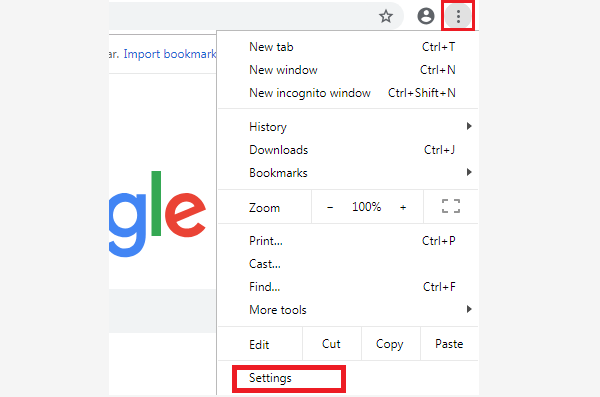
1. Open Google Chrome.
2. Click the menu button in the upper right corner of Chrome and select Settings in the drop-down menu.
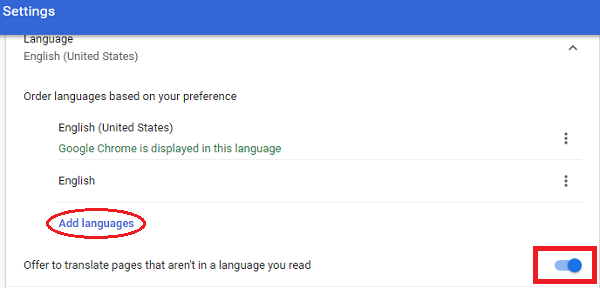
3. Find Language options under the Advanced section and turn on the translation button if it is turned off.
Note: You can add translated language here.
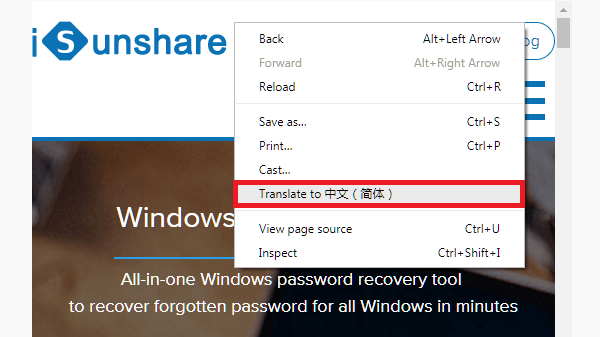
4. Right-click the web page that you want to translate.
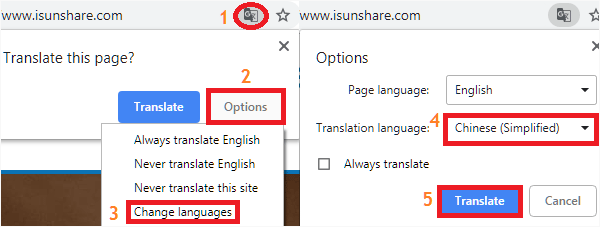
Note: If you want to change the language, you can click the translation icon in the address bar and choose Change languages after selecting Options. Then choose the language you need and tap Translate to finish.